I became addicted to a mobile game. The game allowed one account per email address but it was common practice for players to have 5-20 accounts. This can quickly become a pain to deal with if the player creates a separate email for every account. There are two potential solutions by using GMail. Plus addressing and dots. Both have their downsides but I believe I found a workable and reliable solution.
Plus Adressing
Plus addressing is a GMail feature where you can add a + (plus) after the account name and any tag you wish. For example if I have a game account which specializes in food I could use the following: myemail+food@gmail.com. The benefit is it creates an infinite amount of email aliases each one with a meaningful tag. There are two downsides though. Some systems do not accept the plus sign in an email address. Worse yet, some systems partially support the plus sign or stop supporting the plus sign after you own the account. For example, I gave Best Buy myemail+bb@gmail.com. This allows me to identify email from Best Buy. However Best Buy has been spamming me too much. I went to unsubscribe and the mailing list will not accept my email address as an input. So the registration page has different email checks than the mailing list. One day Best Buy may make their login page address check match the mailing list address check and I would be locked out completely. That is a huge risk. Lastly there is a risk that you forget which tag you used for an account.... maybe I used myemail+farm@gmail.com instead of +food?
Dot Addressing
Dot addressing is a GMail feature where dots or periods are completely ignored in the account name. This means if your email is first.last@gmail.com, its the same as firstlast@gmail.com and fi.rstlas.t@gmail.com. Dots do not have the acceptance problem with other email systems like Plus addressing has. It is more universal. However, remembering where you placed the dot is hard. And remembering which dot placements you have already used is hard too.
The Novel Solution
The down side to dot addressing was discussed above. The solution I created helps solve the problem and makes it somewhat easier. It is very common in the games I play to use names like Farm 1, Farm 2, Farm 3, etc for the extra accounts. So the solution is to use binary dot addressing to handle accounts. In binary there are Ones, Twos, Fours, Eights, Sixteens, Thirty Twos, etc places. We shall also assume that we will never start or end an email address with a dot. So what email shall we use? How about our initials and a representation for the binary places O,T,F,E,S,T. I actually decided to drop thirty twos place so I don't have any repetition. Perhaps this is an email I would use flotfes@gmail.com. Placing a dot before the proper character would tell me to add that number (1). No dot would mean don't add the number (0). My main game account would be the original address, but I would use fl.otfes@gmail.com for Farm 1. The dot before the 'O' means 1. flo.tfes@gmail.com for Farm 2, fl.o.tfes@gmail.com for Farm 3. The dot before the 'O' means 1 and the dot before 'T' means 2, 1+2 =3. The system isn't perfect but I can always figure out which email address went to which account and I can easily handle over 30 dummy game accounts with only a 6 letter email address.
Good luck and enjoy!
Showing posts with label Tips. Show all posts
Showing posts with label Tips. Show all posts
Thursday, September 22, 2016


Thursday, September 18, 2014
AT&T Mobile Share - Cost Effective Phone Upgrades
With the Apple iPhone 6 coming out tomorrow, many people are looking at upgrading. Most people would believe that getting the iPhone 6 for $199 is a good deal. It usually is not because of the hidden costs.
This post mostly applies to those who have switched to the Mobile Share plan which has a shared data cost and seperate per device costs. Voice and Texts are usually unlimited on these plans. This post still applies if you are buying an iPhone 6, iPhone 5c, or even a Samsung Galaxy.
This post mostly applies to those who have switched to the Mobile Share plan which has a shared data cost and seperate per device costs. Voice and Texts are usually unlimited on these plans. This post still applies if you are buying an iPhone 6, iPhone 5c, or even a Samsung Galaxy.
Thursday, March 17, 2011
Finally, Block sites in Google search!
Goodbye Experts Exchange!
I hate experts exchange. When looking for an answer to a technical question, I think I finally found a result in google. I click and wham, I didn't bother to see the link was for experts exchange. An annoying search result which wants you to pay to see answers. I have 2 problems with it. 1. I'm finding answers for my job, I'm not going to pay experts exchange for my employer's benefit. 2. I get paid no matter how long it takes me to find an answer.
Now, with google you can click on a search result you don't like, then click the back button and A new link will appear asking if you want to block the site from ALL future results!
BYE BYE Experts Exchange!

Wednesday, March 24, 2010
DIY Personalized Email Marketing with OpenOffice.org for Free
The Problem and a Marketing Tip:
When I photograph a wedding, I will place cards on the tables for guests to write in their name and email address. I tell the guests that I will notify them as soon as the pictures are online. So far, guests are happy about it and they actually thank me for the doing this for them. I make a point to only mail once to avoid being spam-y. Well, I like the messages to list their name in the salutation. 'Hi Joe' just works better for me than something less personable. Tools and online services for this are expensive. So digging around I figured out how to do it with OpenOffice.org for FREE.
Keep reading if you want the techie details. If not, Follow Me, to get more photography and tech tips. This will be a long one. EDIT: These instructions are made for Ubuntu / Linux. You may need to adjust for windows.
Setup:

Create SpreadSheet:
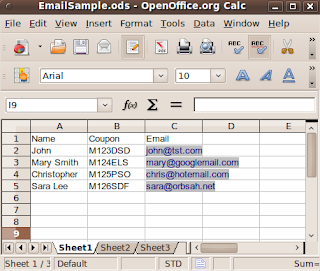
Create spreadsheet with Row1 having column titles. Two columns you will likely need are Name and Email but feel free to have others.
Create Message Template:

MailMerge Wizard:
Once you are done you can open the mail merge wizard. Tools, MailMerge Wizard. The wizard divides the task into 8 steps. Most of which you will skip.


If all goes well you will see a progress bar complete the sending. You should be able to check your Sent Items folder and see all the messages. If you mistyped any email addresses, you will probably get a failure notification by email just for the bad addressess.
Cleaning Up:
If you use this email marketing a lot, you may start to build a lot of databases. To remove databases from the OpenOffice list (this doesn't delete the database file):


Thanks for reading. Hopefully it all went smooth for you. I wish I could have found instructions like these when I started... Enjoy!
Ps. I've tried to include a small graphics in my emails, but they don't make it to the email system. If you are handy with HTML, it may be better to link to an internet hosted graphic.
When I photograph a wedding, I will place cards on the tables for guests to write in their name and email address. I tell the guests that I will notify them as soon as the pictures are online. So far, guests are happy about it and they actually thank me for the doing this for them. I make a point to only mail once to avoid being spam-y. Well, I like the messages to list their name in the salutation. 'Hi Joe' just works better for me than something less personable. Tools and online services for this are expensive. So digging around I figured out how to do it with OpenOffice.org for FREE.
Keep reading if you want the techie details. If not, Follow Me, to get more photography and tech tips. This will be a long one. EDIT: These instructions are made for Ubuntu / Linux. You may need to adjust for windows.
Setup:
- Ensure your default mail client is configured to handle mail. If you use webmail, configure your email client to be able to send to the web account before continuing.
- Setup Your Mail Merge Email account in OpenOffice Writer by choosing Tools, Options.
- Then expand the OpenOffice.org Writer settings.
- Finally click Mail Merge E-mail and fill in your values.

Create SpreadSheet:
Create spreadsheet with Row1 having column titles. Two columns you will likely need are Name and Email but feel free to have others.

Create Message Template:
- Create a letter you would like to send without names or other merged values.
- Put the mouse in the location you would like the first field.
- Goto Insert, fields, Other or press Ctrl-F2
- On the Database tab, select mail merge fields in the Type Box


- Click Browse and locate your spreadsheet.
- After choosing your spreadsheet, it should now appear in the list of databases.
- Expand the database and sheet1.


- Click on the field you want to use and click insert. the field should now appear in your document.

- Without closing the Fields window you can click in other areas of your document and insert other fields.
- You probably don't want to insert the email address into the message body. That will come later.
MailMerge Wizard:
Once you are done you can open the mail merge wizard. Tools, MailMerge Wizard. The wizard divides the task into 8 steps. Most of which you will skip.
- Step 1. Leave as Current Document.

- Step 2. Choose Email Message
- Step 3. Select your database for the address list.

- Step 4. Skip. You have already completed this by inserting fields. This part of the wizard is clumsy so we did it a better way.
- Step 5. Nothing to do here. It should be grayed out.
- Step 6. Nothing to do here, but you can click the arrows and actually see your data in your message template.

- Step 7. Nothing to do here, but at this point OpenOffice will create a new document with all your merged data. If you cancel now, it will close this temporary document, and take you back to your template.
- Step 8. Select the last option, Send merged document as E-Mail.
- For To: Select your email address field.
- For Subject: Type any Subject
- Send As: I leave as HTML, choose what you need.
- Click Send Documents

If all goes well you will see a progress bar complete the sending. You should be able to check your Sent Items folder and see all the messages. If you mistyped any email addresses, you will probably get a failure notification by email just for the bad addressess.
Cleaning Up:
If you use this email marketing a lot, you may start to build a lot of databases. To remove databases from the OpenOffice list (this doesn't delete the database file):
- Click on View, Datasources (or press F4).
- Right-Click in the database box and click Registered Databases.
- In the new window select the databases you created and delete them. Do not delete the databases the system created, such as Bibliography.

Thanks for reading. Hopefully it all went smooth for you. I wish I could have found instructions like these when I started... Enjoy!
Don't spam anyone and before sending a large list of emails ensure you follow the rules of your email provider or they may drop your account. For example, Gmail limits you to 500 emails per day. And if you get a large number of failed deliveries they may temporarily disable your account.
Ps. I've tried to include a small graphics in my emails, but they don't make it to the email system. If you are handy with HTML, it may be better to link to an internet hosted graphic.
Subscribe to:
Posts (Atom)